
To begin using your phone system without deploying additional hardware, install a compatible softphone application on your desktop or mobile device.
We support a range of softphone applications across all major desktop and mobile platforms, allowing you to connect to your phone system quickly and securely using your existing devices.
Mobile
- VertiCall iOS - https://apps.apple.com/app/verticall/id1539013672
- VertiCall Android - https://play.google.com/store/apps/details?id=com.sipcentric.communicator
Desktop
- Windows - 3CX (Configuration Guide)
- Mac - Telephone
- Linux - SFLphone
VertiCall Desktop.
- Mac: https://d124ea7dq1kewg.cloudfront.net/communicator/darwin/universal/VertiCall%20Desktop-2.2.14-universal.pkg
- Windows: https://d124ea7dq1kewg.cloudfront.net/communicator/win32/x64/VertiCall%20Desktop-2.2.14%20Setup-full.exe
VertiCall Click-to dial
https://chromewebstore.google.com/detail/verticall-click-to-call/bdfdoomhgdhjcmnfilpiocbpiiigkoac
VertiCall Bridge.
https://d124ea7dq1kewg.cloudfront.net/bridge/win32/x64/VertiCall%20Bridge.msi
Adding Team members.
Additional users can be granted access to the portal by creating team member accounts. Role-based permissions allow access to be restricted to a specific extension or expanded to include all extensions within the account, depending on the required level of administration.
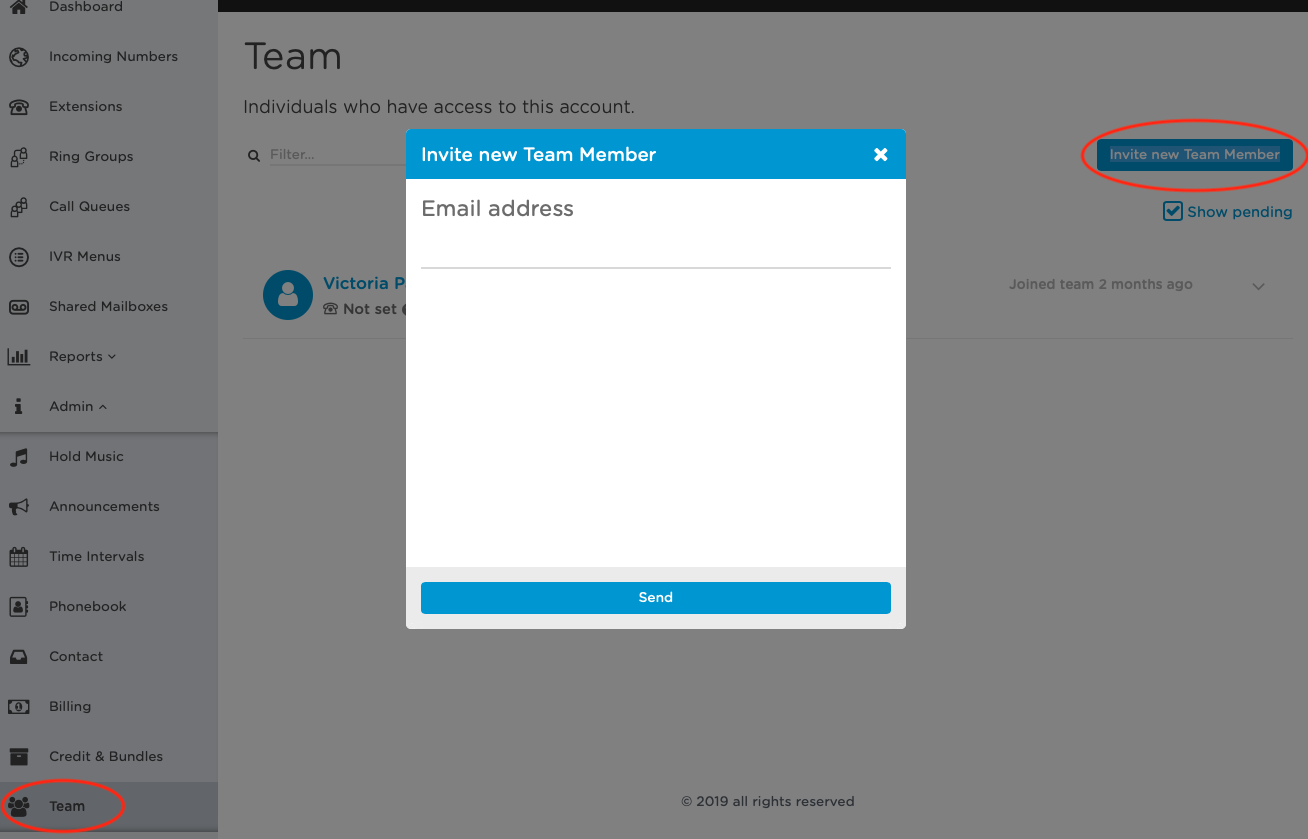
Adding a New User
Click “Invite new Team member” and complete the following fields:

- Access level – choose between
User Roles.
Extension – The user can view and manage their own extension only.
Admin – The user has administrative access to the account and can view and manage most account settings and resources.
Owner – The user has full administrative control of the account, including the ability to grant access to sensitive data such as call recordings. An account may have multiple Owners.
Call Recording Access
Use this option to specify which extension's call recordings the user is permitted to access and manage.
Accepting an Invitation
Username – Must be at least six characters in length and may contain letters and numbers only.
Password – Must be at least six characters in length.
Removing a Web User
Select the user or users you wish to remove, then click Remove Selected.

Connecting an Extension to a Team member.
To connect a team member to their extension, you can navigate to the team members section of the portal.
Click on the team member, this will give you some expanded options. Click on "Not Set", which will pop open a new menu, and select the extension you would like to connect. Click Next and save these changes.
Once this is done, the team member can log in to VertiCall using the same username and password they set, and make and receive calls via their Extension.
Comments
0 comments
Please sign in to leave a comment.